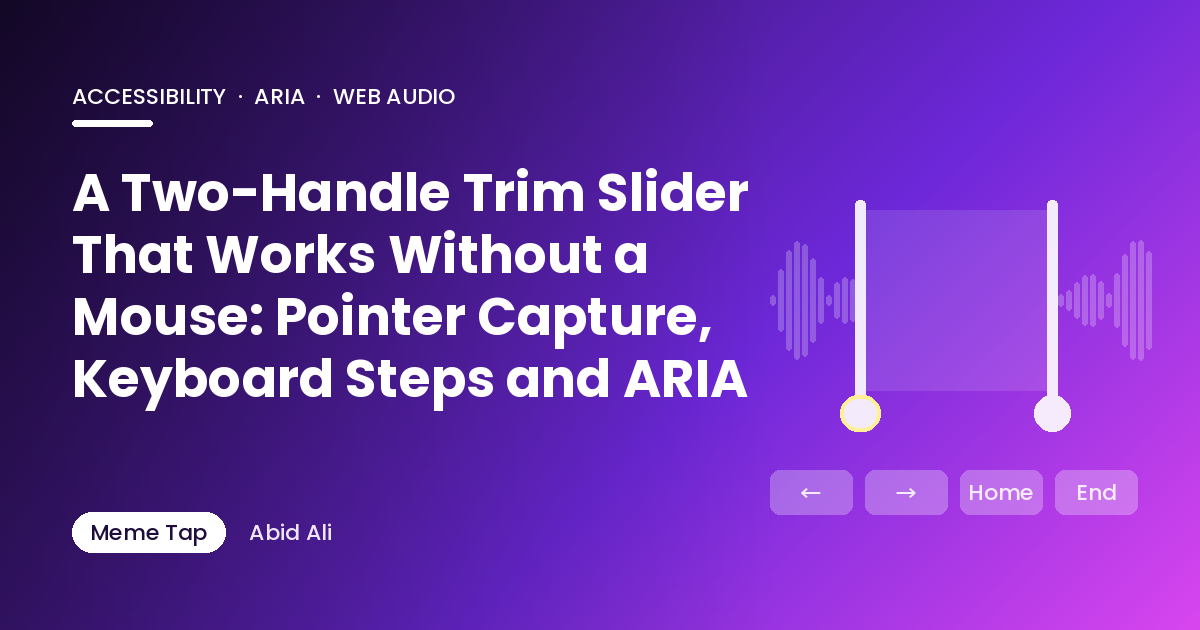
The audio trimmer on Meme Tap, the soundboard I built, has the usual layout: drop a file, a waveform appears, and a shaded region with two handles marks the part you keep. Drag the handles, press Play clip, download. There are also Start and End number fields for when you know the exact times.
Those number fields are a good backup, but they shouldn't be the only way a keyboard or screen reader user can trim a clip. The handles themselves should work with arrow keys, announce their values in words, refuse to cross each other, and behave on touch screens where a drag usually scrolls the page instead.
There's no native element for this. <input type="range"> has one thumb. You can stack two of them, but you end up fighting the browser over which one gets the pointer, and the "start can't pass end" rule still lives in your code. This post builds a two-handle range from scratch, in two layers:
- A pure state module with no DOM at all: clamping, minimum gap, keyboard steps, pointer-to-time conversion, formatting. Tested with
node --test. - A thin DOM layer:
role="slider", pointer capture, focus, and rendering. Checked in headless Chrome.
The split is the most useful idea here. Every bug I'd expect in a slider like this is a maths bug, and maths is easy to test when it's not tangled up with events.
The state: two numbers and a rule
A range is a duration, a start, an end and a minimum gap so the selection can never collapse to nothing.
export const round2 = (t) => Math.round(t * 100) / 100;

export function createRange(duration, { minGap = 0.1 } = {}) {
  if (!(duration > 0)) throw new RangeError("duration must be > 0");
  return { duration, minGap: Math.min(minGap, duration), start: 0, end: duration };
}
Everything is in seconds, rounded to hundredths. That matches the precision people can type into a Start/End field, and it keeps values like 3.0500000000000003 out of the screen-reader output.
The one rule: moving a handle never moves the other one. The moving handle just stops at the gap.
export function setHandle(r, which, t) {
  const v = round2(Number(t));
  if (!Number.isFinite(v)) return r;                  // ignore junk, keep the old state
  if (which === "start") {
    const start = Math.min(Math.max(0, v), round2(r.end - r.minGap));
    return { ...r, start };
  }
  const end = Math.max(Math.min(r.duration, v), round2(r.start + r.minGap));
  return { ...r, end };
}
Some sliders "push" the other handle along when you collide. That feels clever with a mouse and confusing with a keyboard, because pressing Right on one control silently changes another. Stopping is predictable, and it's what the ARIA values below can describe honestly.
Returning the same object for bad input matters too. The number fields feed the same function, so typing "abc" into Start leaves the selection where it was.
Moving the whole selection
Dragging the shaded region (not a handle) shifts both ends while keeping the length:
export function moveSelection(r, delta) {
  const len = r.end - r.start;
  const start = round2(Math.min(Math.max(0, r.start + delta), r.duration - len));
  return { ...r, start, end: round2(start + len) };
}
A 3-second selection on an 8-second file dragged far right lands on 5–8, not 8–11.
Keyboard steps
The ARIA Authoring Practices slider pattern describes the expected keys for a multi-thumb slider: arrows step, Page Up/Down take a bigger step, Home and End go to the limits. For a trimmer, "the limits" of each handle are set by the other handle.
export function keyToValue(r, which, key, shift = false) {
  const now = r[which];
  const small = shift ? 1 : 0.05;
  const lo = which === "start" ? 0 : r.start + r.minGap;
  const hi = which === "start" ? r.end - r.minGap : r.duration;
  switch (key) {
    case "ArrowRight": case "ArrowUp":   return now + small;
    case "ArrowLeft":  case "ArrowDown": return now - small;
    case "PageUp":   return now + 1;
    case "PageDown": return now - 1;
    case "Home": return lo;
    case "End":  return hi;
    default: return null;                 // not ours: let the browser handle it
  }
}
Two choices worth explaining:
- The step size. Fifty milliseconds is small enough to tighten a cut on a meme sound, where the whole clip might be a second long, and large enough that holding an arrow key moves at a useful pace. Shift + arrow jumps a full second. Pick steps that suit your content; a podcast editor would want bigger ones.
nullfor unknown keys. The caller only callspreventDefault()when this returns a number. Tab, Escape and screen-reader shortcuts pass straight through. Swallowing every keydown on a focused control is the fastest way to trap someone.
keyToValue only proposes a value. It still goes through setHandle, so Home on the end handle and End on the start handle can never break the gap.
Pointer position to time
export function xToTime(x, trackWidth, duration) {
  const f = Math.min(Math.max(x / trackWidth, 0), 1);
  return round2(f * duration);
}

export function nearestHandle(r, t) {
  const ds = Math.abs(t - r.start), de = Math.abs(t - r.end);
  if (ds === de) return t < r.start ? "start" : "end";
  return ds < de ? "start" : "end";
}
xToTime clamps so dragging past the edge of the track pins the handle to 0 or the duration instead of producing negative times. nearestHandle decides what a click on the bare track should do: move whichever handle is closer. The tie rule only matters when the click is exactly halfway, and sending it to the end handle is an arbitrary but consistent choice.
Words for the screen reader
aria-valuenow is a number, and a screen reader will read "3.25" without saying what unit it is. aria-valuetext gives it something better:
export function formatTime(t) {            // for the label on screen
  const m = Math.floor(t / 60);
  const s = (t - m * 60).toFixed(2).padStart(5, "0");
  return `${m}:${s}`;                       // "1:03.50"
}

export function spokenTime(t) {             // for aria-valuetext
  const m = Math.floor(t / 60);
  const s = round2(t - m * 60);
  const sec = `${s} second${s === 1 ? "" : "s"}`;
  return m ? `${m} minute${m === 1 ? "" : "s"} ${sec}` : sec;   // "1 minute 3.5 seconds"
}
The colon format is right on screen and awkward out loud. Writing two functions is cheaper than arguing about one.
The markup
<div class="trimmer">
  <div class="track">
    <div class="selection"></div>
    <div class="handle" data-handle="start" role="slider" tabindex="0" aria-label="Trim start">
      <span class="time" aria-hidden="true"></span>
    </div>
    <div class="handle" data-handle="end" role="slider" tabindex="0" aria-label="Trim end">
      <span class="time" aria-hidden="true"></span>
    </div>
  </div>
</div>
Each handle is its own slider with its own label, so the screen reader announces "Trim start, slider, 2.5 seconds". The visible time label is aria-hidden because aria-valuetext already says it.
The CSS that matters:
.track  { position: relative; height: 56px; touch-action: none; }
.handle { position: absolute; top: -6px; bottom: -6px; width: 24px; margin-left: -12px;
          touch-action: none; cursor: ew-resize; }
.handle:focus-visible { outline: 3px solid #f59e0b; outline-offset: 2px; }
.selection { position: absolute; top: 0; bottom: 0; pointer-events: none; }
touch-action: none is what stops a horizontal drag on a phone from scrolling the page or triggering the browser's back gesture. Keep the handle at least 24 px wide; a 4 px line looks neat and is nearly impossible to grab with a thumb.
The DOM layer
import { createRange, setHandle, keyToValue, xToTime, nearestHandle,
         formatTime, spokenTime } from "./trim-range.mjs";

export function mountTrimmer(root, duration, onChange = () => {}) {
  const track = root.querySelector(".track");
  const fill = root.querySelector(".selection");
  const handles = {
    start: root.querySelector('[data-handle="start"]'),
    end: root.querySelector('[data-handle="end"]'),
  };
  let r = createRange(duration, { minGap: 0.1 });

  function render() {
    for (const which of ["start", "end"]) {
      const el = handles[which];
      const lo = which === "start" ? 0 : r.start + r.minGap;
      const hi = which === "start" ? r.end - r.minGap : r.duration;
      el.setAttribute("aria-valuemin", lo.toFixed(2));
      el.setAttribute("aria-valuemax", hi.toFixed(2));
      el.setAttribute("aria-valuenow", r[which].toFixed(2));
      el.setAttribute("aria-valuetext", spokenTime(r[which]));
      el.style.left = (r[which] / r.duration) * 100 + "%";
      el.querySelector(".time").textContent = formatTime(r[which]);
    }
    fill.style.left = (r.start / r.duration) * 100 + "%";
    fill.style.width = ((r.end - r.start) / r.duration) * 100 + "%";
  }

  function update(which, t) {
    const next = setHandle(r, which, t);
    if (next.start === r.start && next.end === r.end) return;
    r = next;
    render();
    onChange(r);
  }

  for (const which of ["start", "end"]) {
    const el = handles[which];
    el.addEventListener("keydown", (e) => {
      const v = keyToValue(r, which, e.key, e.shiftKey);
      if (v === null) return;
      e.preventDefault();
      update(which, v);
    });
    el.addEventListener("pointerdown", (e) => {
      e.preventDefault();
      el.setPointerCapture(e.pointerId);
      el.focus();
      const move = (ev) => {
        const box = track.getBoundingClientRect();
        update(which, xToTime(ev.clientX - box.left, box.width, r.duration));
      };
      const up = () => {
        el.removeEventListener("pointermove", move);
        el.removeEventListener("pointerup", up);
        el.removeEventListener("pointercancel", up);
      };
      el.addEventListener("pointermove", move);
      el.addEventListener("pointerup", up);
      el.addEventListener("pointercancel", up);
    });
  }

  track.addEventListener("pointerdown", (e) => {
    if (e.target !== track && e.target !== fill) return;
    const box = track.getBoundingClientRect();
    const t = xToTime(e.clientX - box.left, box.width, r.duration);
    const which = nearestHandle(r, t);
    update(which, t);
    handles[which].focus();
  });

  render();
  return { get range() { return r; }, set: update };
}
The parts that earn their keep:
setPointerCapture. Once a handle captures the pointer,pointermovekeeps arriving even when the finger or mouse leaves the 24 px handle, which it will within a frame. Without capture you end up listening onwindowand cleaning up by hand.pointercancel. On touch devices the browser can take a gesture away from you. Treat cancel like up or the listeners leak.- Focus follows the pointer. Grabbing or clicking a handle focuses it, so someone who drags roughly and then fine-tunes with the arrows doesn't have to Tab around first.
aria-valueminandaria-valuemaxchange. The start handle's max is the end minus the gap, and the end handle's min is the start plus the gap. Announcing the real limits is more honest than claiming both run from 0 to the duration.onChangeonly fires on real changes. Pressing Left at 0 doesn't wake the waveform redraw or the preview player.
The set function in the returned object is what the Start and End number fields call. One path into the state means the fields, the keys and the pointer can never disagree.
Testing it
The state module has seven node --test cases: handles can't cross and keep the gap, junk input leaves the range alone, moving the selection stays inside the file, every key maps to the right value (and Tab returns null), pointer positions clamp, track clicks pick the nearest handle, and both time formats come out right. All pass on Node 20.
For the DOM layer, a small demo page mounts the trimmer on a 12-second "file", dispatches real KeyboardEvent and PointerEvent objects, and prints the ARIA attributes. In headless Chrome it reported, among other things:
start after ArrowRight 0.05 | 0.05 seconds
start after Shift+ArrowRight 1.05
end after Home 1.15 min 1.15
Tab defaultPrevented false
track click at 1s -> start 1.00 focused true
Home on the end handle stops at start plus the gap, Tab is left alone, and a track click moves the nearest handle and focuses it. That's the behaviour a keyboard user needs, checked without anyone holding a mouse.
What the headless run can't tell you is how it sounds. Before shipping, turn on a real screen reader (NVDA on Windows, VoiceOver on a Mac or iPhone, TalkBack on Android) and trim a clip with your eyes closed. If you can do it, the slider works.
Where this fits
Once the range is right, the audio part is the easy bit: play from start for end - start seconds for the preview, and slice the decoded samples for the download. The Meme Tap guide to cutting MP3 and WAV in the browser covers that side from the user's point of view, and the audio trimmer is where you can try a real one.
I'm Abid Ali, a freelance full-stack developer in Karachi working with TypeScript, Next.js, React and Node.js. I built Meme Tap, a free meme soundboard and meme maker that runs in the browser.
About the author
- I'm Abid Ali, a full stack developer from Karachi with 3+ years of experience in TypeScript, Next.js, Gatsby, React and React Native. I build web apps, mobile apps and interactive UIs with solid API integration. Side projects: OG Scope (ogscope.pk), a free Open Graph checker; Digital Dialogue (digitaldialogue.pk), freelancing guides for Upwork and Fiverr beginners; and Meme Tap (memetap.pk), a free browser meme soundboard.
Comments
Join the discussionNo comments yet. Be the first to comment.